
Monitoring the Number of Users per PPPoE Server on Mikrotik
For providers using the Mikrotik as a PPPoE concentrator, knowing the exact number of clients connected to each server is an essential metric. This quick guide shows how you can configure Monsta to monitor the total users per pppoe-server.
1. Data Collection
Section titled “1. Data Collection”The method used to obtain the per-server count on Mikrotik is by executing a command via SSH (Secure Shell).
1.1. Access Configuration on Mikrotik
Section titled “1.1. Access Configuration on Mikrotik”Before configuring Monsta, your Mikrotik must allow SSH access:
- Create a Specific User: On Mikrotik, create a user (e.g.:
monsta) with a strong password and minimal permissions (only what’s necessary to run the command, such asread). - Enable the SSH Service: Ensure the SSH service (port 22, by default) is active and that the Mikrotik Firewall allows incoming connections from the IP where your Monsta is installed.
2. Configuring the Monitor in Monsta
Section titled “2. Configuring the Monitor in Monsta”Click the button to add a new device and enter the following information:
- In the Details tab, fill in the following information:
- Device Name: In this field enter any text that identifies your equipment;
- IP Address: Enter the Mikrotik’s IP;
- In the Templates tab, select “Mikrotik Routerboard;
- In the collection tab, fill the “SSH” option with the username, password and port if it differs from 22.
- Click Save to create the new device.
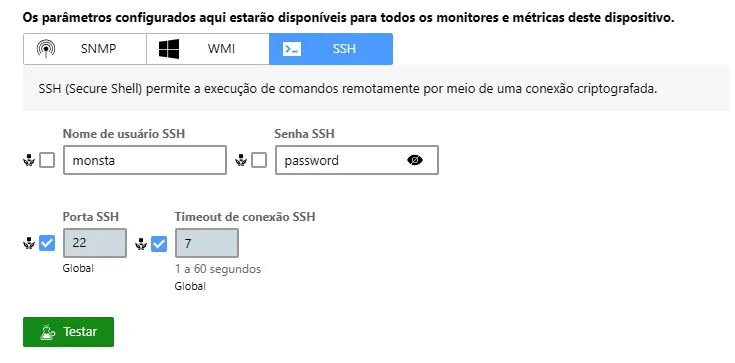
3. Creating the User Monitor
Section titled “3. Creating the User Monitor”After creating the device, click on it so that the monitors appear at the bottom of the screen. Click ”+” to add a new monitor.
In the monitors window, search for “PPPoE: Users per PPPoE server” and select which server you want to monitor the number of users.
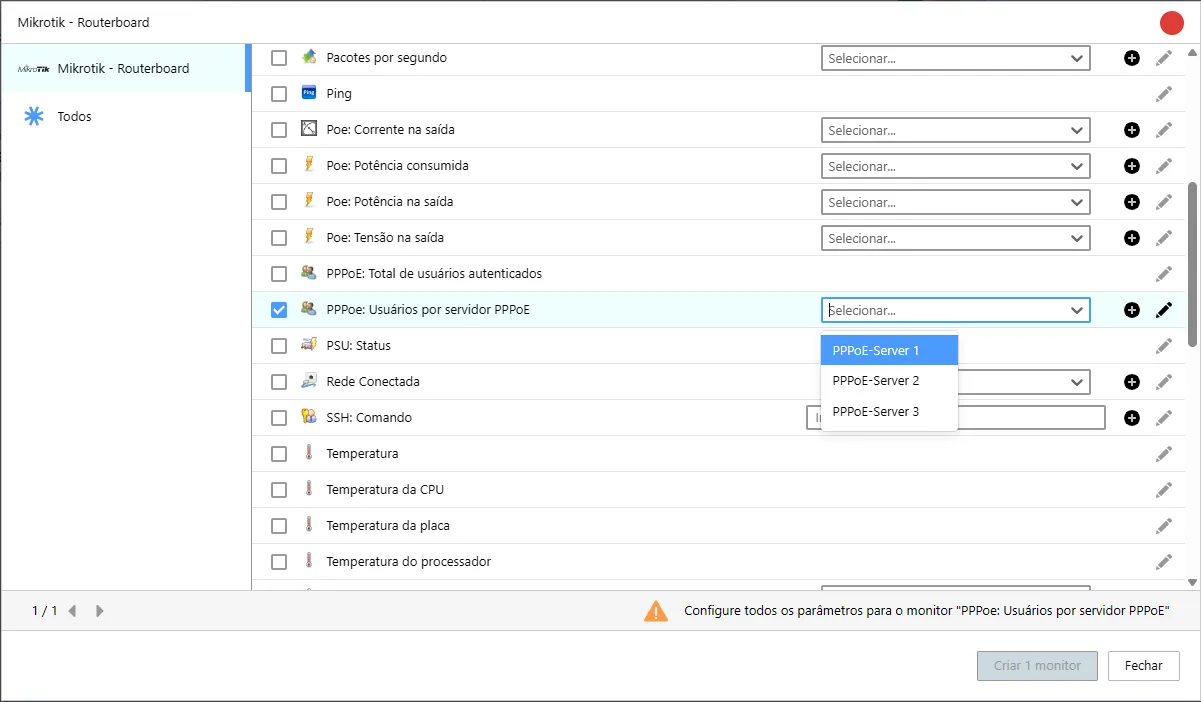
Click the button to create the monitor.
Now your Monsta monitors the total users within that server. If you want to add monitoring for other servers, just click ”+” again and select the available options.
