
Alert Message Template Examples
Os alertas enviados pelo Monsta podem ser personalizados através dos Templates de Mensagem, disponível em Grupo de Alertas > Template de Mensagem. Este artigo demonstra alguns exemplos de personalização para melhorar as mensagens de alerta, afim de se adaptar à sua necessidade. Para entender o funcionamento dos Templates de Mensagem e como funcionam as variáveis disponíveis, veja o artigo sobre os Alertas do Monsta.
Using variables according to the alert
Section titled “Using variables according to the alert”Some variables are related to the device and others to the monitor. For example, the variable {{nomemetrica}} is related to a monitor. Therefore, when using this variable in a device alert, it will be sent empty in the alert. However, it is possible to differentiate in the same template what the message will be for a device alert or a monitor alert. The following code is an example that uses this feature.
{{#if alertadispositivo}}> Subject: {{dispositivo.estado}}: Dispositivo {{dispositivo.nome}}.Estado: {{dispositivo.estado}}Dispositivo: {{dispositivo.nome}}IP: {{dispositivo.endereco}}Horário: {{dataehora}}{{else}}> Subject: {{monitor.estado}}: Monitor {{dispositivo.nome}}/{{monitor.nome}}.Estado: {{monitor.estado}}Dispositivo: {{dispositivo.nome}}Monitor: {{monitor.nomecurto}}{{nomemetrica}} ({{nomeinstancia}}): {{valor}}IP: {{dispositivo.endereco}}Horário: {{dataehora}}{{/if}}What is between {{#if alertadispositivo}} and the {{else}} refers to the message for an alert generated by a device (when it goes offline, for example). What is between {{else}} and {{/if}} refers to the message for an alert generated by a monitor (when a monitor reaches an alert metric, for example). It is worth mentioning that the field “>Subject:” refers to the “subject” when the alert is sent by e-mail. Alerts sent via Telegram and SMS will not have this information.
The example code will generate the following alerts (examples received on Telegram).
- Alert generated by a Device that returned from critical status:
- Alert generated by a Monitor without an instance that entered critical status:
- Alert generated by a Monitor with an instance that entered critical status:
If the customization for device and monitor were not used (using the monitor message settings for both), the device alert message would look like this:
- Alert generated by a Device with monitor variables.
Customization allows the message to be better structured.
Customizing with fixed information
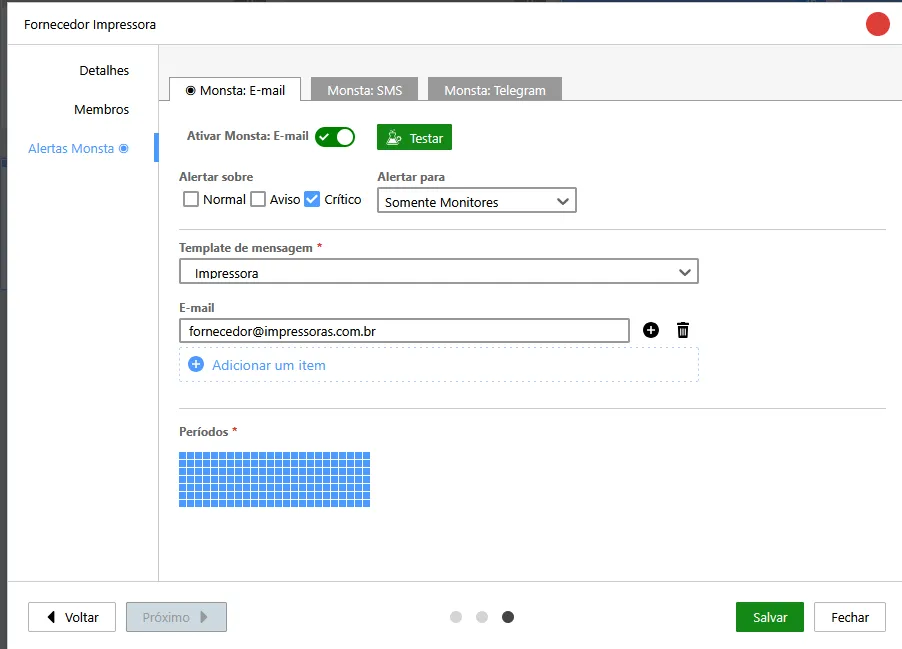
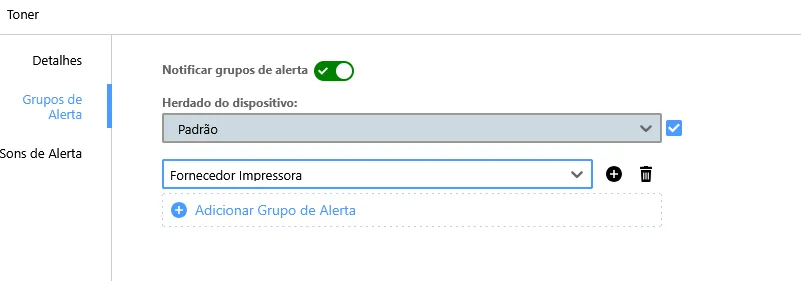
Section titled “Customizing with fixed information”In addition to using variables, you can also add information that does not change according to the alert, such as company name, department, responsible person, support number… This data can be useful if you receive alerts from more than one Monsta (to identify where the alert came from) or even for alerts that are sent to managers, suppliers or third parties. As it is possible to create multiple message templates, you can create an Alert Group for a printer supplies vendor that will receive an e-mail when your printer’s toner is in critical status. Just configure the template in the alert group and add the alert group to the specific monitor.
For example:
- Template for a printer supplies vendor, which can be used exclusively on printer monitors
{{#if alertadispositivo}}> Subject: {{dispositivo.estado}}: Dispositivo {{dispositivo.nome}}.Alerta da empresa MonstaEstado: {{dispositivo.estado}}Dispositivo: {{dispositivo.nome}}IP: {{dispositivo.endereco}}Horário: {{dataehora}}{{else}}> Subject: {{monitor.estado}}: Monitor {{dispositivo.nome}}/{{monitor.nome}}.Alerta da empresa MonstaNossa impressora ({{dispositivo.nome}}) está alertando que {{nomemetrica}} ({{nomeinstancia}}) está em estado {{monitor.estado}} ({{valor}}).Por favor, envie um orçamento para suporteti@empresa.com.brHorário: {{dataehora}}{{/if}}- Alert generated by a Monitor of the printer in critical status:
Example of the alert group configuration so that the recipient receives only the critical monitor alert:
Configuration of the Toner monitor used in the example:
See another example, for the case of having more than one Monsta server and wanting to identify which one the alert came from.
- Monsta 1 Template
{{#if alertadispositivo}}> Subject: {{dispositivo.estado}}: Dispositivo {{dispositivo.nome}}.Monsta Matriz - Alerta DispositivoEstado: {{dispositivo.estado}}Dispositivo: {{dispositivo.nome}}IP: {{dispositivo.endereco}}Horário: {{dataehora}}{{else}}> Subject: {{monitor.estado}}: Monitor {{dispositivo.nome}}/{{monitor.nome}}.Monsta Matriz - Alerta MonitorEstado: {{monitor.estado}}Dispositivo: {{dispositivo.nome}}Monitor: {{monitor.nomecurto}}{{nomemetrica}} ({{nomeinstancia}}): {{valor}}IP: {{dispositivo.endereco}}Horário: {{dataehora}}{{/if}}- Alert generated by a Device that returned from critical status:
- Alert generated by a Monitor with an instance that entered critical status:
- Monsta 2 Template
{{#if alertadispositivo}}> Subject: {{dispositivo.estado}}: Dispositivo {{dispositivo.nome}}.Monsta Filial - Alerta DispositivoEstado: {{dispositivo.estado}}Dispositivo: {{dispositivo.nome}}IP: {{dispositivo.endereco}}Horário: {{dataehora}}{{else}}> Subject: {{monitor.estado}}: Monitor {{dispositivo.nome}}/{{monitor.nome}}.Monsta Filial - Alerta MonitorEstado: {{monitor.estado}}Dispositivo: {{dispositivo.nome}}Monitor: {{monitor.nomecurto}}{{nomemetrica}} ({{nomeinstancia}}): {{valor}}IP: {{dispositivo.endereco}}Horário: {{dataehora}}{{/if}}- Alert generated by a Device that returned from critical status:
- Alert generated by a Monitor with an instance that entered critical status:
Conclusion
Section titled “Conclusion”There are countless ways to customize Monsta alert messages. Use these examples to explore ideas that fit your scenario. If you have any further questions, contact our support.