
TLS Certificate
The TLS certificate management screen allows you to configure and manage the digital certificates used to secure your software’s communications, ensuring the security and privacy of transmitted data.
The available methods are described below.
Let’s Encrypt
Section titled “Let’s Encrypt”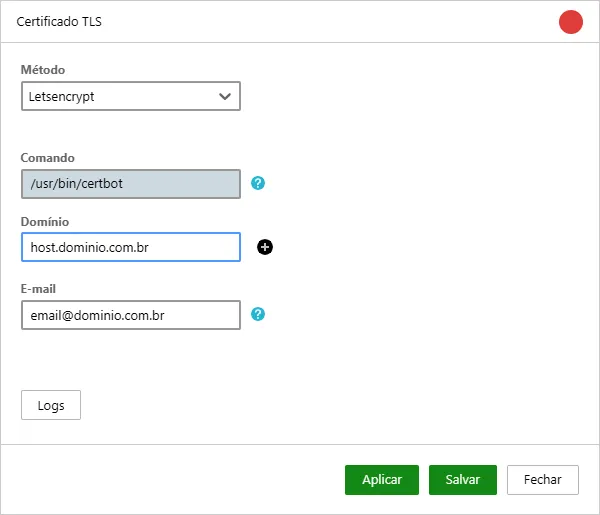
Select this method to enable the use of Let’s Encrypt. Let’s Encrypt is a free, automated Certificate Authority (CA) that allows you to obtain TLS/SSL certificates easily and quickly. Once enabled, Monsta will handle renewing the certificate.
| Opção | Descrição |
|---|---|
 | Command: Indicates where the certbot software should be installed. |
 | Domain: Allows the user to enter the domain(s) for which Monsta will respond. |
 | E-mail: Let’s Encrypt requires a contact email address. Provide an email address that you own. |
Certificado Monsta
Section titled “Certificado Monsta”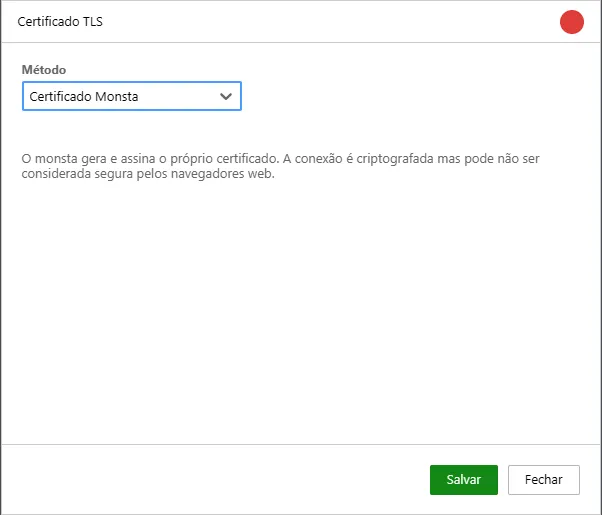
Select this method to generate a new self-signed certificate. A self-signed certificate is a digital certificate that is signed by Monsta itself. It is useful for testing environments or internal use, but it is not recommended for production environments, as it does not offer the same level of trust as a certificate issued by a trusted Certificate Authority (CA).
Custom Certificate
Section titled “Custom Certificate”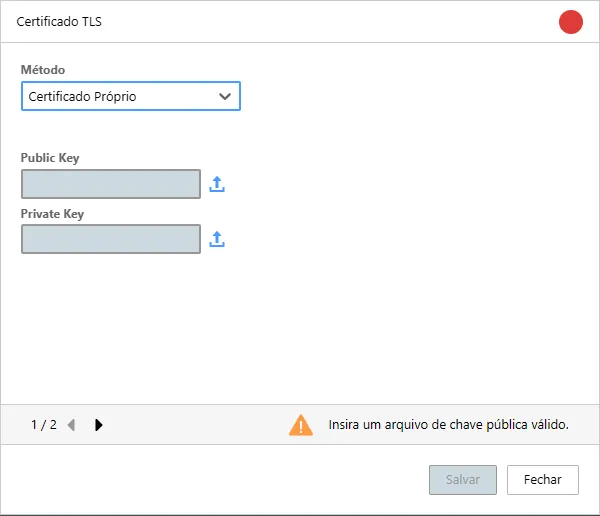
If your company already has a certificate available for use, use this option to upload those files. Monsta accepts only RSA keys encoded in PEM format.
| Opção | Descrição |
|---|---|
 | Public Key: It is the key that will encrypt data sent from the browser to the Monsta server. Use this field to upload the file. |
 | Private Key: It is the key that decrypts the information from the public key. Use this field to upload the corresponding file. |