
How to Restore a Backup?
This manual aims to instruct the user on how to restore a Monsta backup.
Restore a Monsta cloud backup
Section titled “Restore a Monsta cloud backup”Monsta performs an automatic backup of your settings to our cloud daily if there are changes and keeps a history of up to 10 backups.
Advantages and disadvantages of this method
Section titled “Advantages and disadvantages of this method”| Vantagens | Desvantagens |
|---|---|
| • Restoration takes a few minutes; • No Linux technical knowledge required. | • Existing monitor history is reset when restored on a new installation. |
Restore the backup
Section titled “Restore the backup”To restore a backup from the cloud, follow these steps:
- Access Monsta using a user with administrator permissions;
- Click the “Configuration” menu;
- Click the “Cloud Backup” option;
- Select the date of the backup you want to restore;
- Click the “Restore” button.
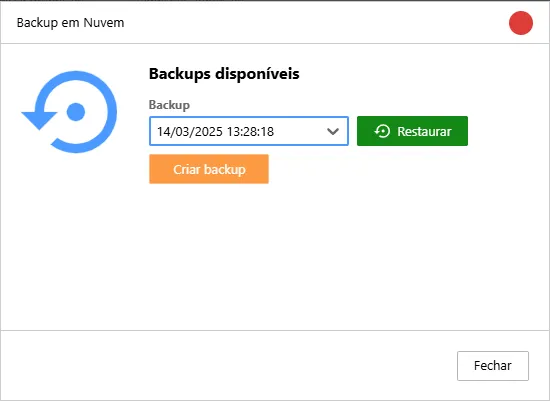
Within a few minutes, Monsta will be restored with the selected backup’s settings and will prompt for login again. Use the users and passwords that were registered in that backup to log in.
Restore a backup from a server
Section titled “Restore a backup from a server”Use this method to keep the monitors’ history in a new installation.
Advantages and disadvantages
Section titled “Advantages and disadvantages”| Vantagens | Desvantagens |
|---|---|
| • Monitor history is preserved. | • Restoration time depends on the amount of data stored in the databases; • Linux shell technical knowledge is required. |
Back up the current server
Section titled “Back up the current server”For this procedure, we suggest using the tutorial available at Migration to another server on this wiki as it will automatically transfer Monsta to a new server.