
Users
Monsta is multi-user, meaning it allows multiple users to be used simultaneously in the system with custom permissions. Monsta’s user management system allows specifying which devices, groups, dashboards or alert groups can be viewed and managed by each member.
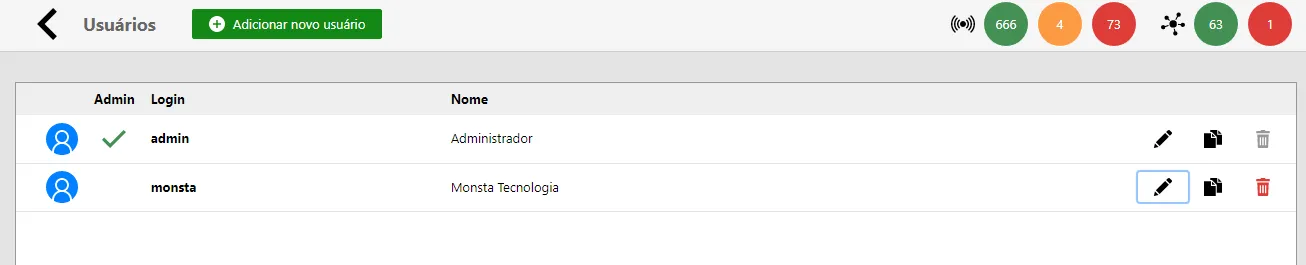
| Icon / Option | Description |
|---|---|
 | Adds a new user to access the platform. |
| Admin | When checked, indicates that the user in the list has administrator permissions and access to all devices, monitors and available resources. |
| Login | This is the login name for Monsta. |
| Name | User’s name. |
 | Edits the selected user’s properties. |
 | Clones the current user’s properties to a new one. |
 | Removes the selected user. |
Create/Edit a User
Section titled “Create/Edit a User”Details
Section titled “Details”These are the user’s basic information.
| Option | Description |
|---|---|
| Login | The user’s login name. Cannot be changed for existing users. |
| Full Name | The user’s full name information. |
| Change Password | Allows changing the password of the user being edited. |
 | Administrator: Assigns administrator properties when enabled. The user will have access to all devices, monitors and resources available in Monsta. |
Devices
Section titled “Devices”Allows the administrator to specify exactly which devices a specific user can view and manage in the system.
| Icon / Option | Description |
|---|---|
 | Write: The user receives write (modification) permissions. They will be able to: • Modify and Remove Devices; • Add, Edit and Remove Monitors (services/metrics) on existing devices. When unchecked, the user can only view data. No changes are allowed to the device list, monitors, or their settings. |
 | Device Filter: Filters devices by the entered text. |
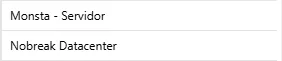 | Device List: The left column lists all devices being monitored by Monsta. The right column lists the devices the user will be able to view and interact with. These are the assets the user will access. |
 | Individual Selection Buttons: Moves the selected devices between the columns of the device list. |
 | Bulk Selection Buttons: Moves all devices from one column to the other in the device list. |
Groups
Section titled “Groups”Configures the groups whose member devices the user will have access to.
| Icon / Option | Description |
|---|---|
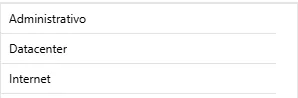 | Device Group List: The left column lists all groups registered in Monsta. The right column lists the groups the user will have access to. Devices belonging to that group will be listed in the “Devices” tab, in the right column, marked as read-only. |
| Device Group Filter: Filters groups by the entered text. |
| Individual Selection Buttons: Moves the selected groups between the columns of the device groups list. |
| Bulk Selection Buttons: Moves all groups from one column to the other in the device groups list. |
Alert Groups
Section titled “Alert Groups”Configures the alert groups that the user will have access to.
| Icon / Option | Description |
|---|---|
| Write: The user receives write (modification) permissions. They will be able to: Alert. When unchecked, the user can only view data. No changes are allowed in the alert groups. |
 | Alert Group Filter: Filters groups by the entered text. |
| Individual Selection Buttons: Moves the selected groups between the columns of the alert groups list. |
| Bulk Selection Buttons: Moves all groups from one column to the other in the alert groups list. |