
Monitor Visualization
Monitors
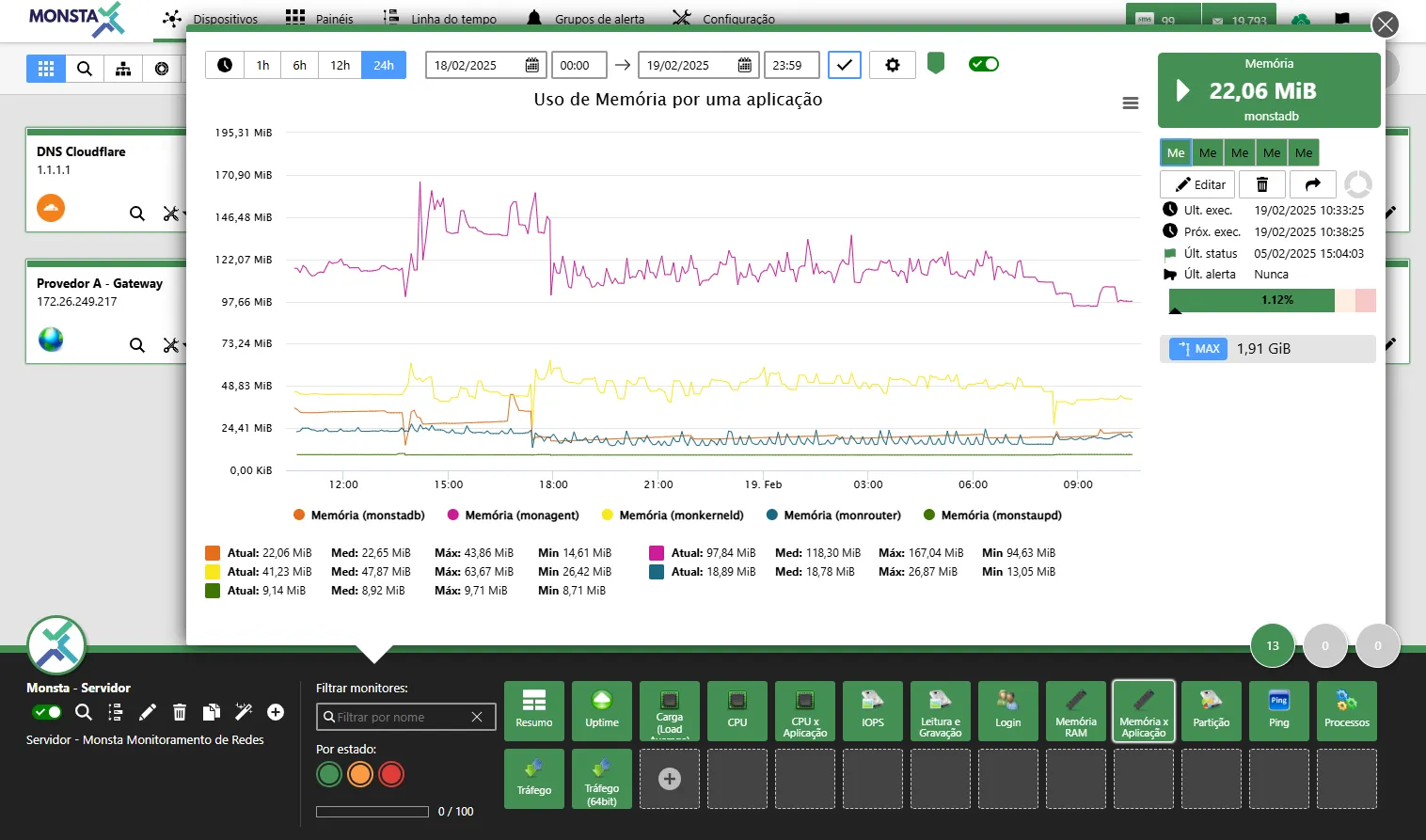
Section titled “Monitors”Monitors are information available on a device, such as CPU, memory, disk, etc. Each device provides exclusive resources that can be monitored. Monitor colors vary according to their state.


| Ícone | Descrição |
|---|---|
 | Title: Name that will appear at the top of the chart. |
 | Limits per reading: When enabled, fills the entire chart according to the period status during the readings. |
 | Show Status Markers: When there is a status change in the presented time period, Monsta adds a marker to visualize when and to which state the change occurred. |
 | Hide values: Removes the reported values from the bottom of the chart presentation. |
 | Hide legend: Removes the legend from the chart presentation. |
 | Show variation only: Renders the chart only with its variations for a better view of changes. |
 | Legend color: Customizes the text color of the legends at the bottom of the chart. |
| Background color: Customizes the chart background color. |
 | Legend font size: Customizes the legend size at the bottom of the chart. |
 | Line width: Customizes the width of the line rendered on the chart. |
 | Show Percentile Indicator: Adds the selected percentile to the chart. |
| Group Data by Time | Group the data by time: When there is a time period greater than two days, Monsta groups data and automatically generates an average of the information to be presented on the chart. In this property you can choose the time that this grouping will use or simply disable this property. |

Enable Monitoring: This button allows enabling or pausing data collection and chart display for the selected asset. When the monitor is disabled, collection is stopped immediately, ceasing metric processing and the sending of associated alerts, without removing the history of data already stored.

Clone Monitor: Use this functionality to replicate the monitor. By triggering this button, you will open a list to select the destination device, inheriting all metrics, alert thresholds and verification parameters configured.

Metric Value: Shows the metric name, the current reading value and whether the result is higher, lower or equal to the previous reading.




- Export as Image: In the top right corner of the chart, click the “Download” or “Export” icon to save the chart as an image file. This allows you to use the image in reports, presentations or easily share it.
- Export Data: You can export the raw data in spreadsheet formats for later analysis. Available formats are CSV and XLS.
- Consumption Report: For a more in-depth analysis, you can calculate the area under the chart curve. This function is ideal for obtaining accumulated or total values over the selected period. Click the “Consumption Report” option and the result will be displayed in a text box, ready to be copied or used in your calculations.
Publish a Monitor
Section titled “Publish a Monitor”Publishing a monitor allows the user to create a link for internet access without the need for a username and password.
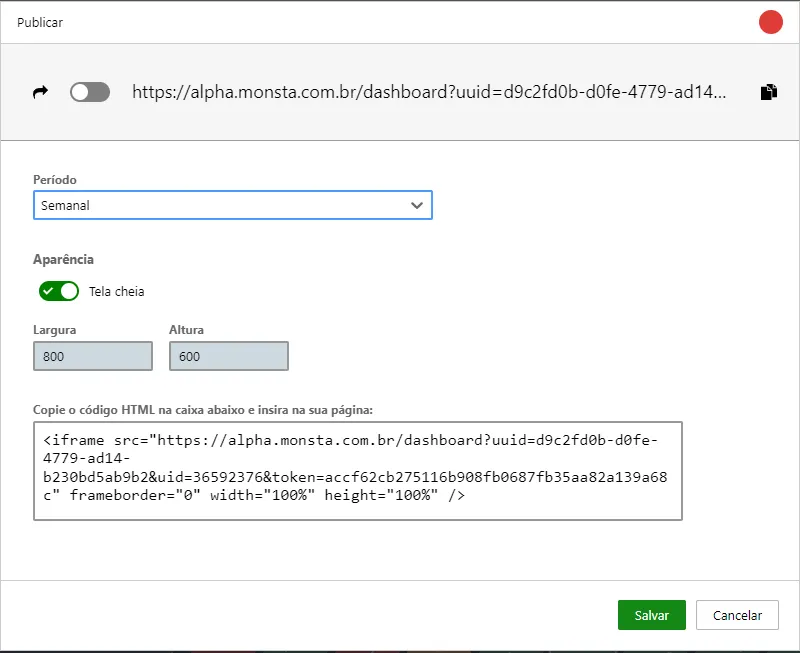
- Publish: Enables creating the link for the selected monitor.
- Period: Allows choosing the publish duration of the chart. For security, periods longer than one month are not allowed.
- Fullscreen: When enabled, uses the entire screen to display the chart.
- Width and Height: Sets the chart dimensions in pixels.
- HTML Code: This code is generated by Monsta for the selected monitor and can be used to publish the chart on a third-party dashboard.
Edit/Customize a Monitor
Section titled “Edit/Customize a Monitor”Editing a monitor allows customizing important information about its behavior, such as collection frequency, alert thresholds and its script for how to fetch information.
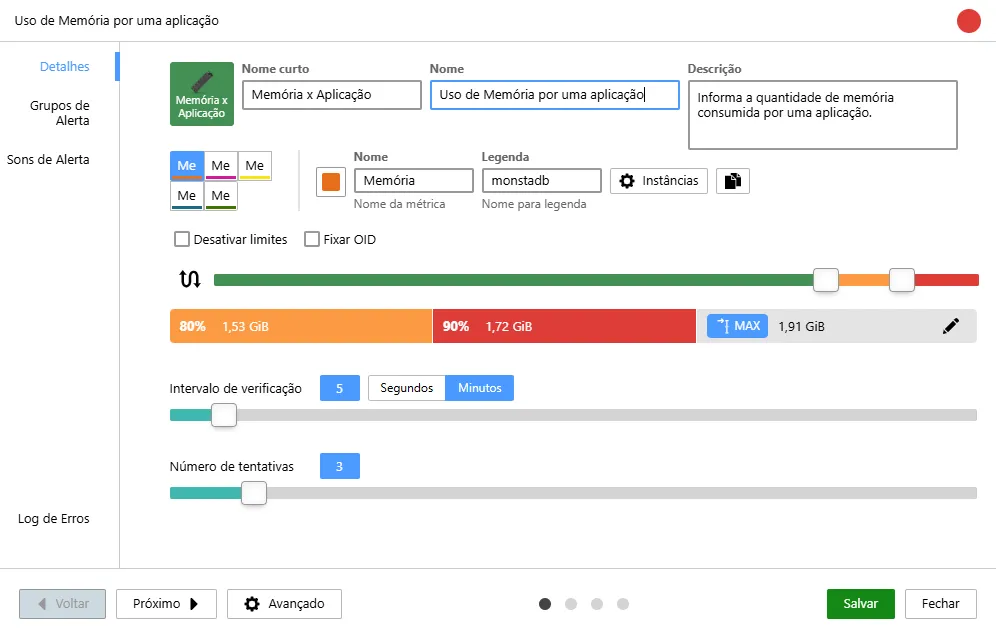
Details
Section titled “Details”









Alert Groups
Section titled “Alert Groups”



Alert Sounds
Section titled “Alert Sounds”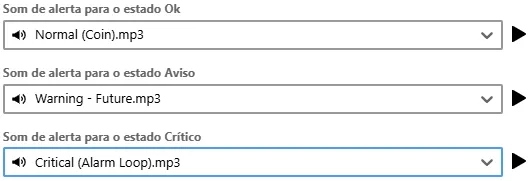
Error Log
Section titled “Error Log”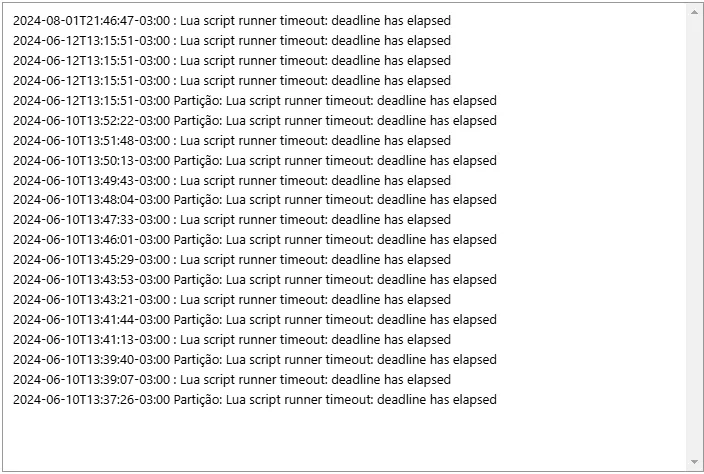
Advanced
Section titled “Advanced”
Metrics
Section titled “Metrics”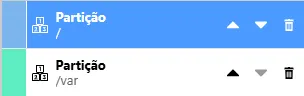
Parameters
Section titled “Parameters”In this tab the parameters used by the selected monitor and their respective values are provided.