
Change the IP address on a Fedora server
This step-by-step tutorial will guide you through the process of changing the IP address on a Fedora Linux server. Learn how to configure a static or dynamic IP to ensure optimal network connectivity for your server.
Configure the server IP
Section titled “Configure the server IP”Log in with root credentials on your server. Once logged in, install the program to manage network interfaces:
dnf install -y NetworkManager-tuiAfter it’s installed, run the manager:
nmtuiFollow the sequence below to edit the network settings:
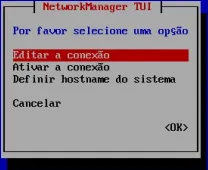
- Select “Edit a connection”;
- Press “Enter”.
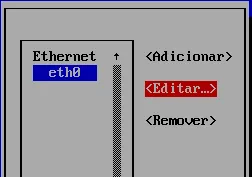
- Select your network connection;
- Select “Edit”.
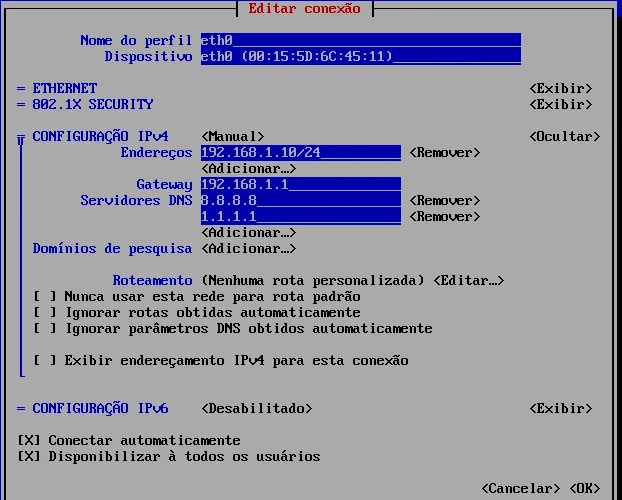
- Select the field “IPVx CONFIGURATION” and press “Enter”;- Select the “Manual” mode;
- Select “Show” and press “Enter”;
- Fill in the fields according to your network settings; remember to include the network mask after the IP address. In the example to the side the mask is /24.
- At the end, select “OK”;
- Press “Enter”.
- Press the “ESC” key to return to the main screen.
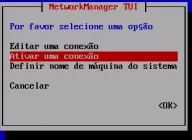
- Select “Activate a connection” and press “Enter”.
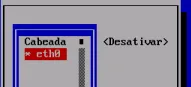
- Select the network interface whose IP was changed and press “Enter” to deactivate it;
- Then press “Enter” again to activate it.
- Press “ESC” until you exit the program and return to the command prompt.
Access Monsta
Section titled “Access Monsta”After configuring the server IP address, open a web browser and access:

or

The Monsta login screen will be displayed. To log in, use your credentials.
Firewall Rules (Optional)
Section titled “Firewall Rules (Optional)”If your network has a firewall that controls internet access, allow the following hosts and ports:
- Host
a.ntp.brand 2.fedora.pool.ntp.org- Host
mind.monsta.com.bron port 443/TCP- Host
mind.monsta.com.bron port 80/TCP
The above ports for mind.monsta.com.br and www.monsta.com.br allow:
- Automatic backup of configurations.
- Restoration of the backup in case of a failure.
- Sending notifications by Email, SMS and Telegram.
- Checking the communication status between the Monsta installed on your server and the Monsta Cloud. This allows receiving alerts in case of unexpected stops of the monitoring service, such as improper shutdown of the server or internet link failure.
- Authentication of Licensing Keys.
- Checking and updating the system version.