
Reset the root password: Ubuntu
A step-by-step guide to reset the password of any user (including root) on Ubuntu using the GRUB menu to access a recovery shell.
1. Access the GRUB Menu
Section titled “1. Access the GRUB Menu”- Restart your Ubuntu system.
- Hold the
Shiftkey (or, on UEFI systems, press theEsckey repeatedly) during early boot to force the GRUB menu to appear (if it doesn’t show automatically). - Use the arrow keys to select your current kernel option, usually the first line.
- Press the
ekey to edit the boot parameters.
2. Edit the Boot Line
Section titled “2. Edit the Boot Line”-
In the edit screen, use the down arrows to find the line that starts with
linux. -
On that line, look for the
ro(read-only) parameter and replace it withrw(read-write). -
Go to the end of that same line and add the following:
Terminal window init=/bin/bashThe end of the modified line should look like:
... ro quiet splash rw init=/bin/bash -
Press
Ctrl+Xto boot the system with these new parameters. The system will boot directly to a root shell (#).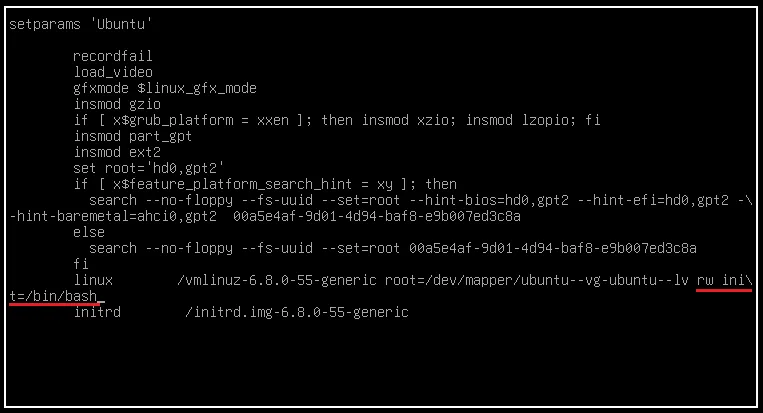
3. Change the User Password
Section titled “3. Change the User Password”In the root shell that appears, you can reset any user’s password using the passwd command.
3.1. Reset a Regular User’s Password
Section titled “3.1. Reset a Regular User’s Password”If you want to reset a regular user’s password (e.g. joao):
- Run the
passwdcommand followed by the username:Terminal window passwd joao - Enter the new password and confirm it.
3.2. Reset the Root (Superuser) Password
Section titled “3.2. Reset the Root (Superuser) Password”Ubuntu normally disables the root account by default, but you can enable it (and set its password) if necessary:
- Run the
passwdcommand without arguments:Terminal window passwd root - Enter the new password and confirm it.
4. Finish and Reboot
Section titled “4. Finish and Reboot”- After changing the password, you need to reboot the system for the changes to take effect and for the system to boot normally. Use the
execcommand to restore the init process:Terminal window exec /sbin/init 6 - The system will reboot and you will be able to log in with the new password set for the chosen user.