
How to monitor the status of an HTTP URL?
This article explains the proper procedure to monitor the status of a specific URL (such as http://192.168.0.200:8080/sistema) in Monsta, checking whether it responds with an HTTP/200 (OK) status.
❌ Common Mistake
Section titled “❌ Common Mistake”It’s a common mistake to try to add the full URL path (ex: http://192.168.0.200:8080/sistema) in the Device Address field on the device screen.
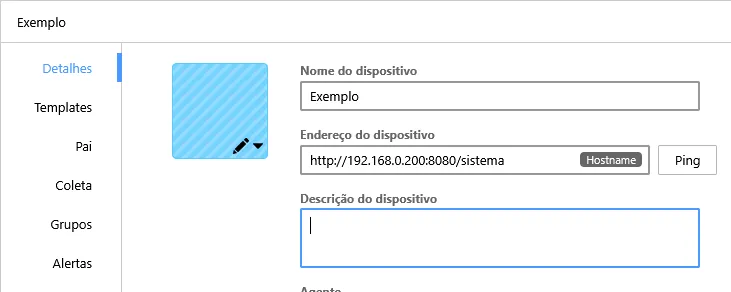
The Device Address field accepts only the IP or hostname (ex: 192.168.10.16, www.foo.com). It is used to identify the device and does not check URL paths or ports.
✅ Correct Procedure: Using the URL Monitor
Section titled “✅ Correct Procedure: Using the URL Monitor”To monitor whether a specific path on a URL is responding correctly, you should add a dedicated monitor to that device.
1. Add the HTTP Service Template
Section titled “1. Add the HTTP Service Template”- Edit the device.
- Add the “Services - HTTP” template to the device.
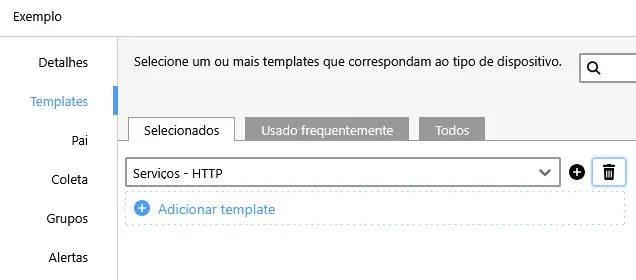
2. Add and Configure the “Check URL” Monitor
Section titled “2. Add and Configure the “Check URL” Monitor”The “Services - HTTP” template contains several monitors, including “Check URL”, which will be used.
- Click the option to add a new monitor

- Select the “Check URL” monitor and click the pencil icon to edit

- Click Advanced and add the URL you want to monitor (ex:
http://192.168.0.200:8080/sistema)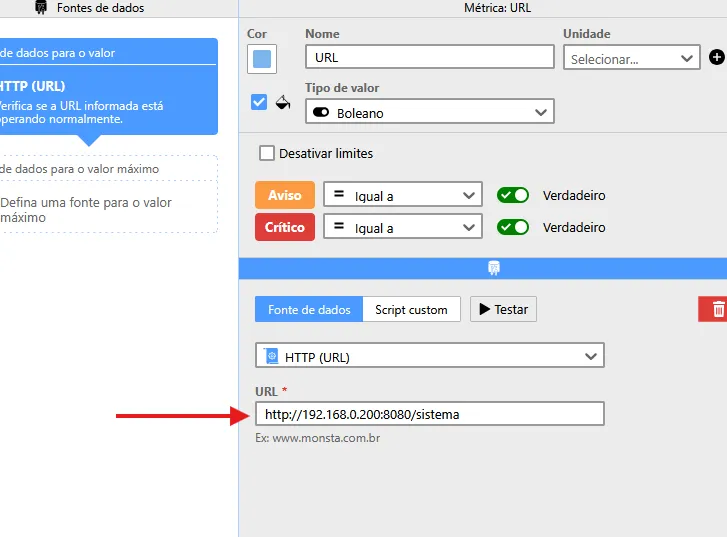
- Save the changes and create the monitor