
New Device
By clicking the “New” button you can add a device to Monsta monitoring.
Details
Section titled “Details”Sets the basic information about the device.
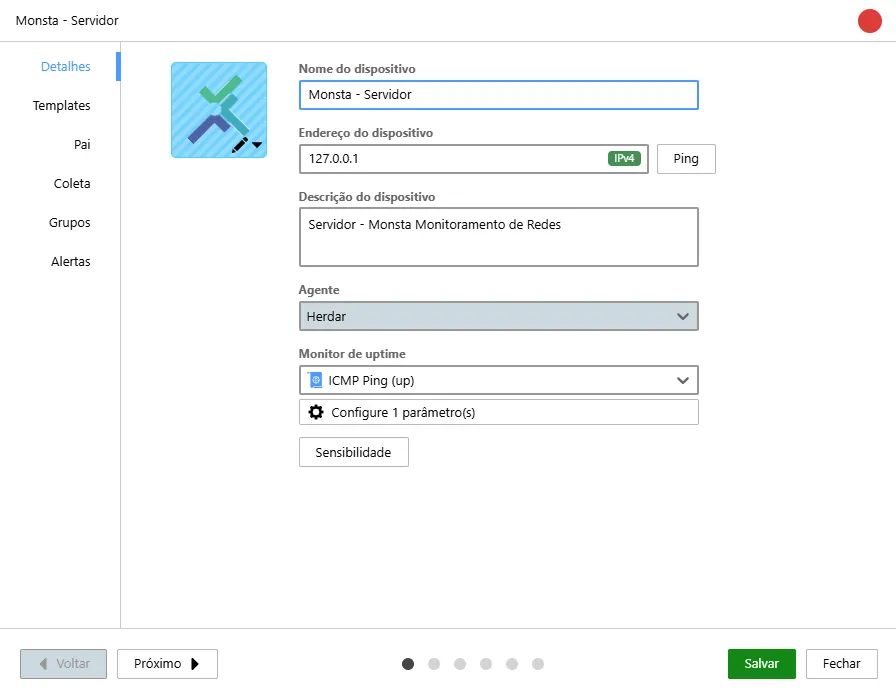
| Ícone | Descrição |
|---|---|
 | Icon: Allows selecting an icon for the device. |
 | Device name: This will be the name displayed in the view modes. |
 | Device address: The IPv4 address, IPv6 or host of the device. It is possible to ping the address to test it. |
 | Device description: Allows entering a short text about the equipment. |
 | Agent: Location where the device’s collections will be triggered. This information is read-only. |
 | Uptime monitor: Method used to identify whether the device is active. The default is sending ICMP echo-request (ping) packets. Verification methods may allow some parameters to be specified for queries, such as the size of the ICMP packet to be sent or the TCP port to be checked on the device. |
 | Sensitivity: Sets the device’s sensitivity level for ping (ICMP) packets. For more information, see the Sensitivity page. |
Templates
Section titled “Templates”These are the monitors available for each equipment type. Each template has specific monitors to be used, and more than one template can be used on a device.
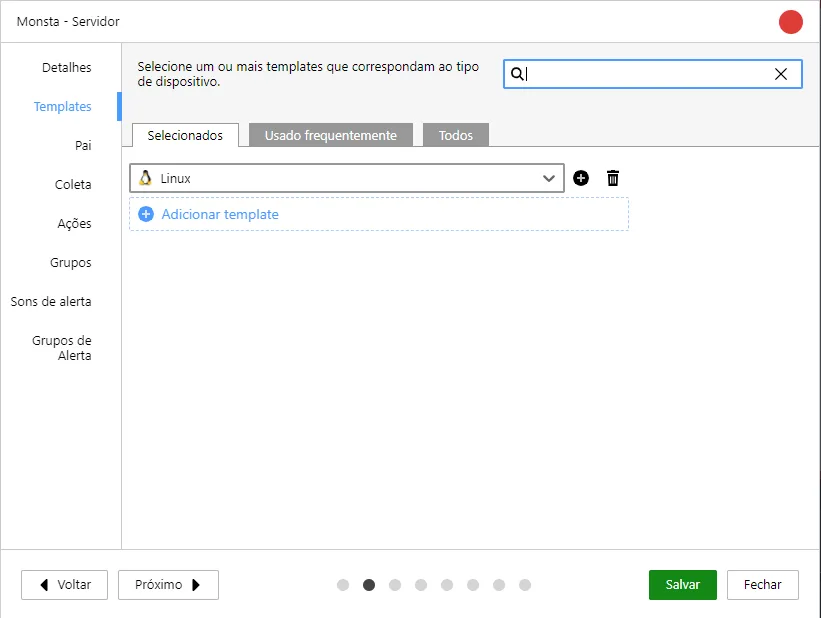
| Opção | Descrição |
|---|---|
| Selecionados | Templates used on this device. |
| Usado frequentemente | A list of the most used templates in your Monsta, which allows quicker selection. |
| Todos | A list of all templates available in Monsta. |
Parent
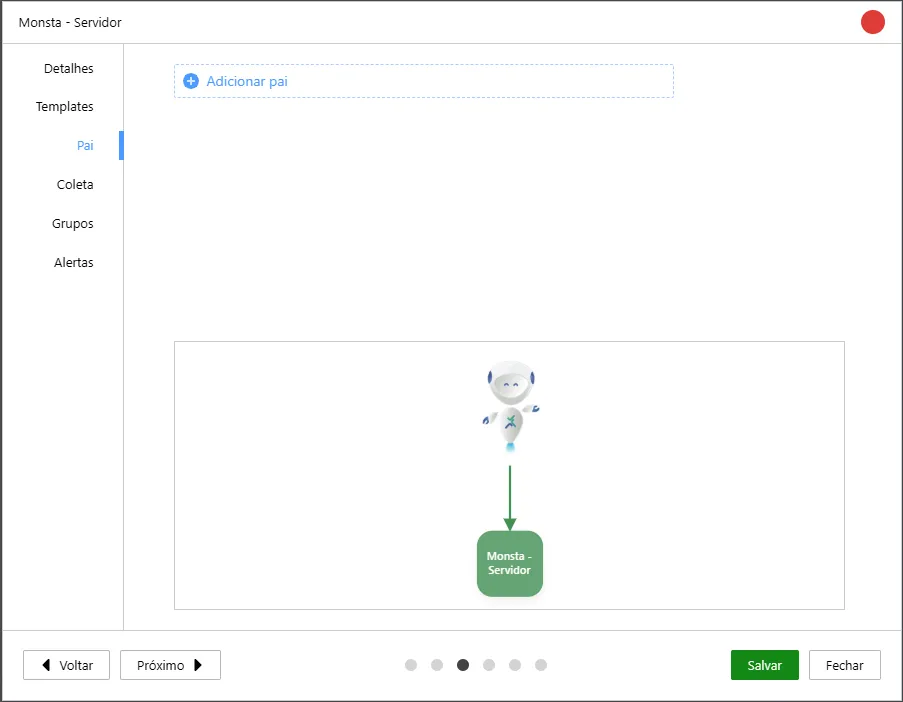
Section titled “Parent”Defines the asset’s hierarchical dependency. Used to organize the network map and optimize the notification system by relating devices to their dependencies.
Collection
Section titled “Collection”This screen shows the main methods for retrieving information from devices used by Monsta. Its main functionality is to allow the user to use a standard configuration for the monitors used and to test whether the communication is functional.
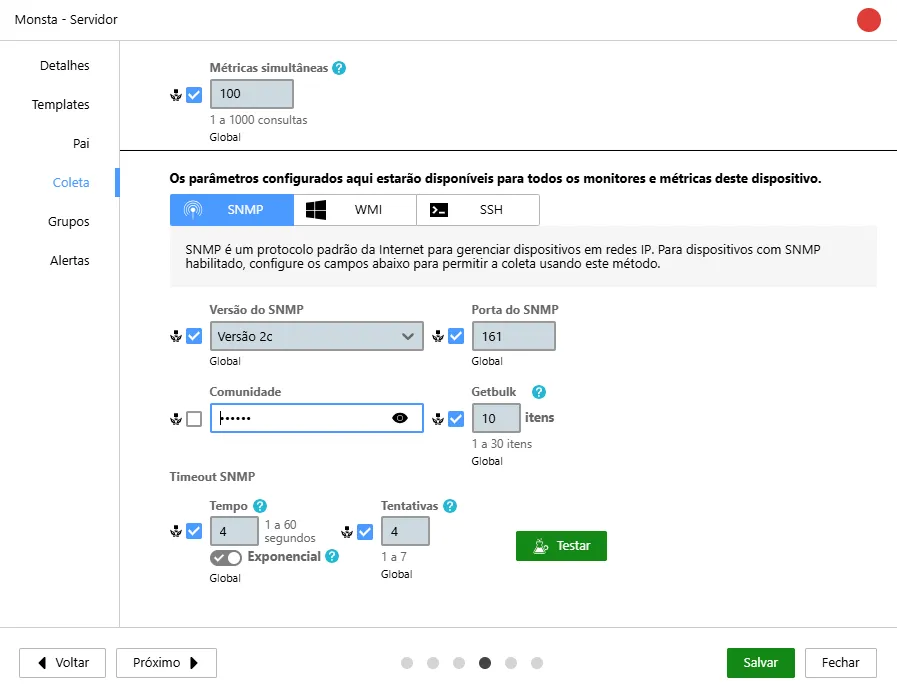
| Ícone | Descrição |
|---|---|
 | Collection methods: These are the default collection types performed by Monsta. By clicking on these methods it is possible to configure general parameters that will be used by the device monitors. To collect data from Windows Servers and Workstations, use the Sonda. For more information, see our tutorial Probe: Windows Monitoring. |
 | Inherit from Group or Global: This property, when checked, obtains the values configured globally or from the group to which the device belongs. For more information see Global device options. |
 | Property: Allows changing the value of this collection property. If the “Inherit value from group or global” option is checked, this property will inherit the configured value. |
 | Exponential: When available, uses a timeout algorithm for collection. This algorithm doubles the timeout time after each failed collection, starting at 1 second. |
 | Test: When available, allows testing whether the device responds to the configured parameters. |
Groups
Section titled “Groups”Devices in Monsta can be part of groups and inherit their configurations. On this screen it is possible to view the groups to which the device belongs and to add others. To add groups, see Device Groups.
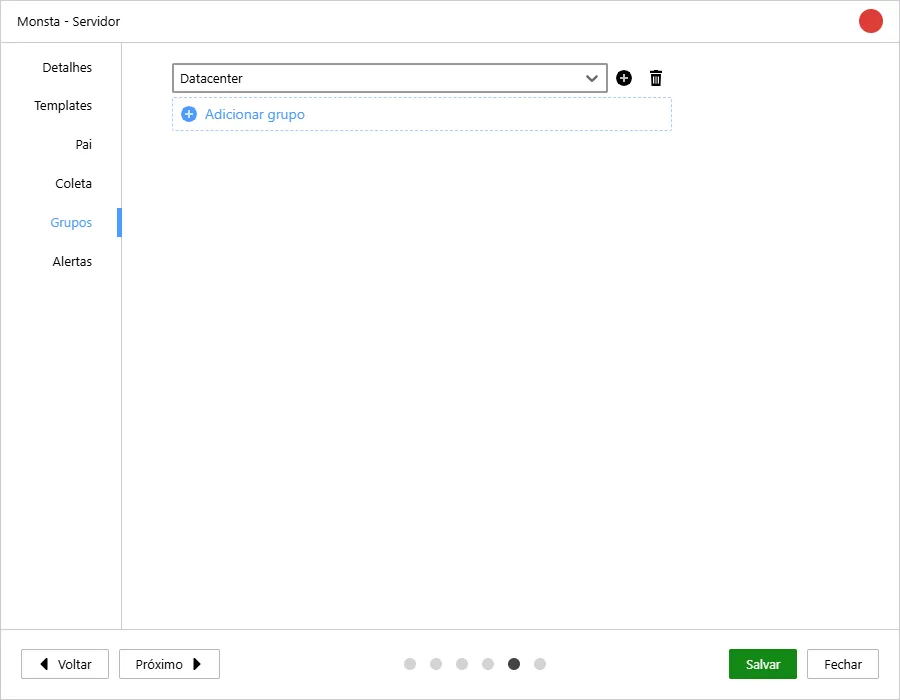
| Ícone | Descrição |
|---|---|
 | Group name: Indicates the group to which the device belongs. |
 | Add group: Allows adding a new group to which the device will belong. |
 | Remove group: Removes the device from the selected group. |
Alerts
Section titled “Alerts”Monsta has the ability to play sounds when a device or monitor changes state. On this screen you can customize the sounds individually for the device in focus.
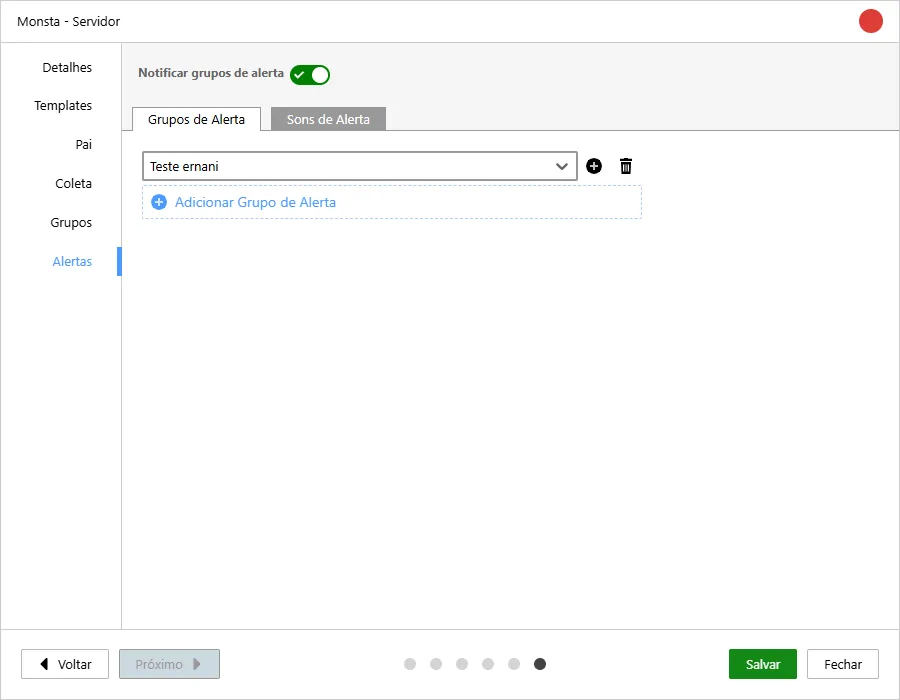
Alert Groups
Section titled “Alert Groups”Alert groups are used to send messages when a device or monitor changes state. These groups can be customized for each device or monitor or specific sounds can be assigned for the device in focus. For more information about alert groups, see Alerts.
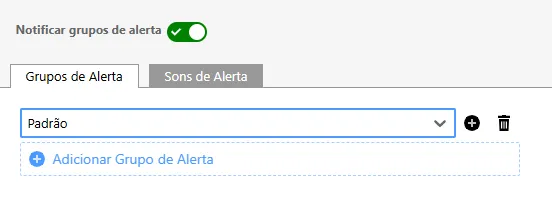
| Ícone | Descrição |
|---|---|
 | Notify alert groups: Enables/disables the sending of alerts for the selected device. |
 | Select: Indicates the alert group to which the device belongs. |
| Add alert group: Allows adding a new alert group to which the device will belong. |
| Remove alert group: Removes the device from the selected alert group. |
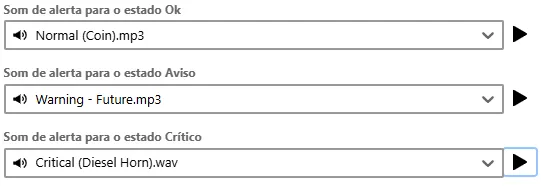 | Alert sounds: Allows selecting a specific sound for each state of the device. |