
Reset the root password: Debian
The root password can be reset using the GRUB (Grand Unified Bootloader) menu to boot the system into single-user mode or with a recovery shell.
Prerequisites
Section titled “Prerequisites”- Physical access to the server/machine console.
- The Debian operating system must be using GRUB as the bootloader.
Step-by-Step to Reset the Password
Section titled “Step-by-Step to Reset the Password”1. Access the GRUB Menu
Section titled “1. Access the GRUB Menu”- Reboot your Debian system.
- Wait for the GRUB menu to appear on the screen;
- Use the arrow keys (↑ and ↓) to select the Debian kernel entry (usually the first option).
2. Edit the Boot Parameters
Section titled “2. Edit the Boot Parameters”-
Press the
ekey to edit the boot commands of the selected entry. -
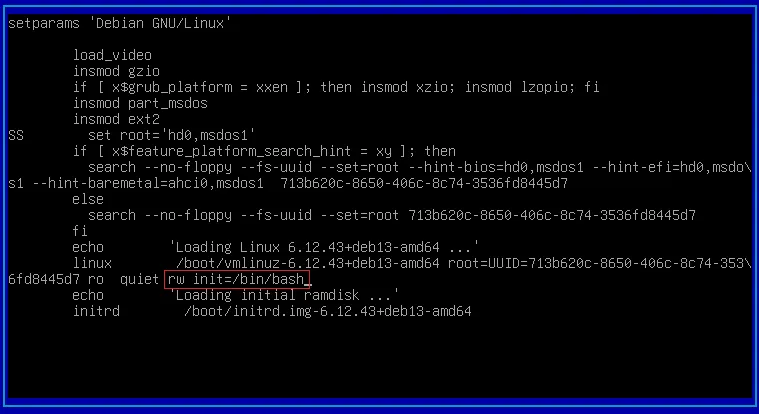
Use the down arrows to locate the line that begins with
linux(orlinuxefi). This line contains the kernel path and its boot parameters. -
On that line, locate and replace the
ro(read-only) parameter withrw(read-write). -
At the end of that same line, add the following parameter to load the bash shell as the main init process:
init=/bin/bash
Example of how the modified line will look:linux /boot/vmlinuz-5.10.0-23-amd64 root=UUID=... rw quiet init=/bin/bash
3. Boot the System and Change the Password
Section titled “3. Boot the System and Change the Password”-
Press
Ctrl+Xto boot the system with the new parameters. -
The system will skip the normal init process and directly load a shell as the root user (indicated by
#). -
Run the
passwdcommand to reset the root user’s password:Terminal window passwd -
Type the new password and confirm it when prompted. Characters will not be displayed (standard security behavior).
-
A message like
password updated successfullywill confirm the change.
4. Reboot the System
Section titled “4. Reboot the System”-
Reboot the system after changing the password. Use the
execcommand to return to the normal init process:Terminal window exec /sbin/init 6 -
Debian will reboot. At the login prompt, you can use the username
rootand the new password you just set.