How to enable alert sounds for status changes?
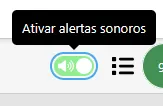
Monsta allows generating audible alerts whenever there is a status change of devices or monitors. It is possible to customize different sounds for each status type, for both monitors and devices.
If, after enabling alert sounds, Monsta does not play any sound, check that the audio files are correctly configured by following the steps below
Sound Management
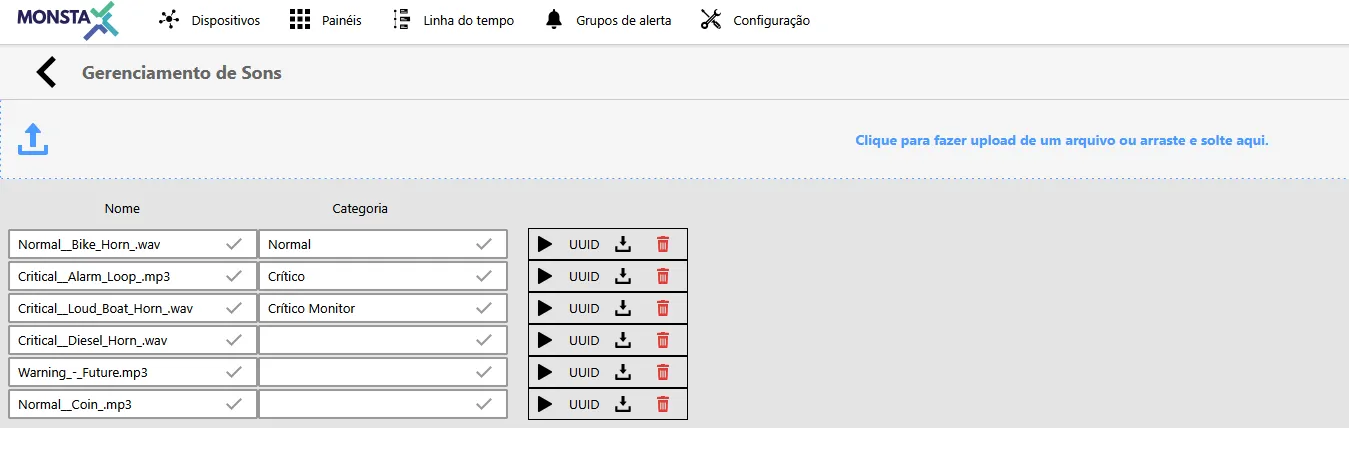
Section titled “Sound Management”You can upload multiple audio files to be used as alert sounds in Monsta.
To upload and view uploaded files, go to: Configuration > Sounds. On this screen you can add new audio files, manage existing ones, and name categories to make it easier to identify each sound.
Global Options
Section titled “Global Options”With the sound files properly uploaded, you need to configure Monsta to use them as alerts.
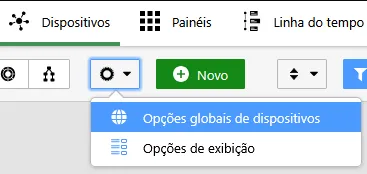
On the Devices screen, access the Global device options configuration.
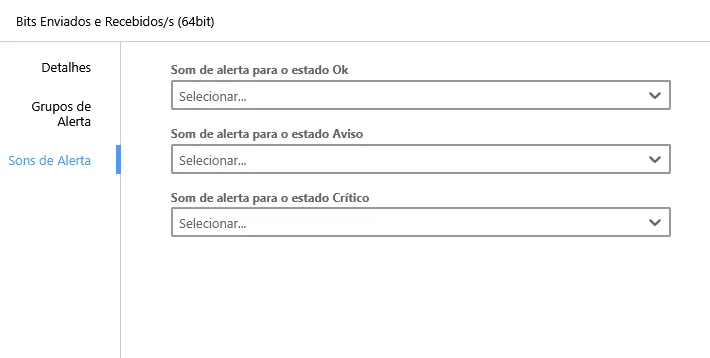
Then, on the Alert Sounds tab, select the desired sound file for each status type.
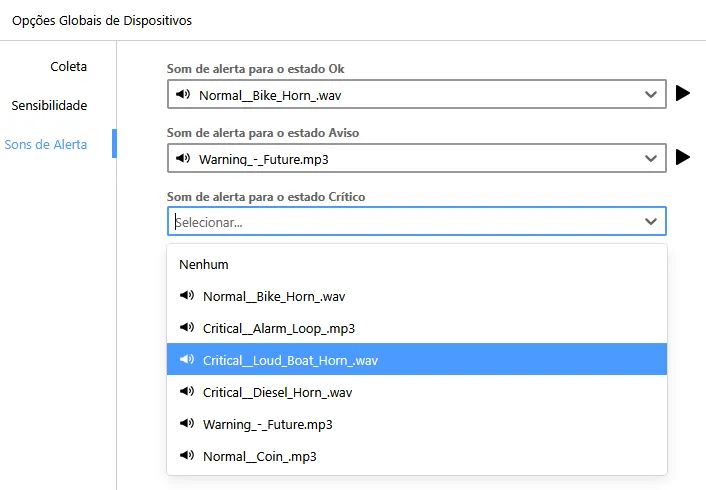
Make sure the toggle for enabling alert sounds is turned on. From that moment, Monsta should play the sounds as configured.
Sounds for devices and monitors
Section titled “Sounds for devices and monitors”In addition to setting sounds globally, you can set specific sounds for each device or monitor.
When editing a device, go to the Alerts > Alert Sounds tab and select the desired sound. Thus, when that device’s status changes, the sound played will be the one configured individually.
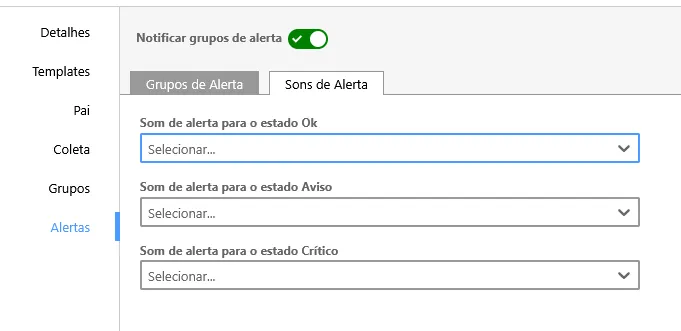
Similarly, when editing a monitor, you can select a sound for it on the Alert Sounds tab.