
How to Fix the Login Error in Monsta?
This article aims to explain how to fix the Monsta login error, since the problem can be caused by different reasons.
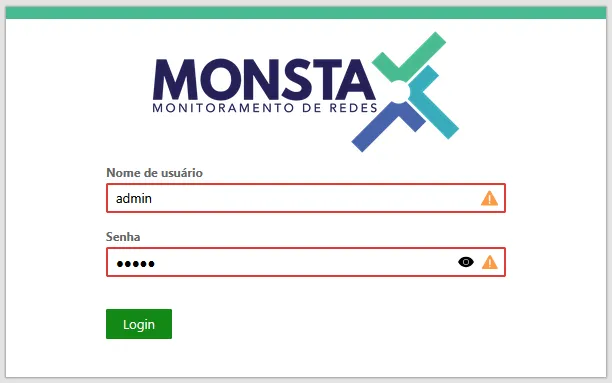
Probable causes
Section titled “Probable causes”The main cause of an error when logging into Monsta is an incorrect password. If you have already reviewed the password, before resetting the admin user’s password, there is one more check you can perform.
When the available space on the partition where Monsta’s database resides runs out, the system may stop functioning correctly. You can check the available space on your Linux. If it is out of space, you have found the problem.
To resolve it, first check whether the Monsta directory (/var/monsta) is the one consuming all the space (see the commands in the following section - How to check the available space?). If that is the case, you will need to increase the available space (if the partition uses LVM, you can follow the article Increasing an LVM Partition) or migrate to a new server with greater storage capacity.
If the /var/monsta directory is not occupying all the space, check which files are consuming storage (logs, temporary files, etc.) and delete them if possible. If it is not possible to remove them, you will need to increase the available space on the server.
If you checked the available space and did not identify storage-related issues, try resetting the admin user’s password.
How to check the available space?
Section titled “How to check the available space?”Below are some commands that allow you to check the current disk space and identify which directories are consuming the most storage.
# df -hSist. Arq. Tam. Usado Disp. Uso% Montado em/dev/mapper/fedora-root 30G 2,6G 28G 9% /devtmpfs 4,0M 0 4,0M 0% /devtmpfs 2,0G 0 2,0G 0% /dev/shmtmpfs 782M 776K 781M 1% /runtmpfs 1,0M 0 1,0M 0% /run/credentials/systemd-journald.servicetmpfs 1,0M 0 1,0M 0% /run/credentials/systemd-network-generator.servicetmpfs 1,0M 0 1,0M 0% /run/credentials/systemd-udev-load-credentials.servicetmpfs 1,0M 0 1,0M 0% /run/credentials/systemd-tmpfiles-setup-dev-early.servicetmpfs 1,0M 0 1,0M 0% /run/credentials/systemd-sysctl.servicetmpfs 1,0M 0 1,0M 0% /run/credentials/systemd-tmpfiles-setup-dev.servicetmpfs 1,0M 0 1,0M 0% /run/credentials/systemd-vconsole-setup.servicetmpfs 2,0G 828K 2,0G 1% /tmp/dev/vda2 2,0G 270M 1,7G 14% /boot/dev/mapper/fedora-var 366G 175G 192G 48% /vartmpfs 1,0M 0 1,0M 0% /run/credentials/systemd-tmpfiles-setup.servicetmpfs 1,0M 0 1,0M 0% /run/credentials/systemd-resolved.servicetmpfs 1,0M 0 1,0M 0% /run/credentials/getty@tty1.servicetmpfs 391M 12K 391M 1% /run/user/0In the example, we observe that the /var directory is using 48% of the partition space. /var is the directory where Monsta’s database is located, so it must not run out of available space.
There are cases where there is no dedicated partition for /var. In that situation, you need to check the available space on the root partition /.
# df -hSist. Arq. Tam. Usado Disp. Uso% Montado em/dev/mapper/fedora-root 40G 40G 0G 100% /devtmpfs 4,0M 0 4,0M 0% /devtmpfs 2,0G 0 2,0G 0% /dev/shmtmpfs 782M 776K 781M 1% /runtmpfs 1,0M 0 1,0M 0% /run/credentials/systemd-journald.servicetmpfs 1,0M 0 1,0M 0% /run/credentials/systemd-network-generator.servicetmpfs 1,0M 0 1,0M 0% /run/credentials/systemd-udev-load-credentials.servicetmpfs 1,0M 0 1,0M 0% /run/credentials/systemd-tmpfiles-setup-dev-early.servicetmpfs 1,0M 0 1,0M 0% /run/credentials/systemd-sysctl.servicetmpfs 1,0M 0 1,0M 0% /run/credentials/systemd-tmpfiles-setup-dev.servicetmpfs 1,0M 0 1,0M 0% /run/credentials/systemd-vconsole-setup.servicetmpfs 2,0G 828K 2,0G 1% /tmptmpfs 1,0M 0 1,0M 0% /run/credentials/systemd-tmpfiles-setup.servicetmpfs 1,0M 0 1,0M 0% /run/credentials/systemd-resolved.servicetmpfs 1,0M 0 1,0M 0% /run/credentials/getty@tty1.servicetmpfs 391M 12K 391M 1% /run/user/0In the example, the root partition / is full, which can cause system malfunctions.
It is also possible to identify which directories are occupying the most space. For that, use the command:
# du -sh /*
This command will display the size of each directory inside /. After identifying the directory that consumes the most space, repeat the command inside it to further detail the usage.
Normally, on servers where only Monsta is installed, the directory with the highest consumption will be /var, and within it, /var/monsta.
# du -sh /var/*0 /var/adm105M /var/cache0 /var/db0 /var/empty176M /var/flow0 /var/ftp0 /var/games0 /var/kerberos43M /var/lib0 /var/local0 /var/lock3,0G /var/log0 /var/mail164G /var/monsta0 /var/nis0 /var/opt0 /var/preserve0 /var/run0 /var/spool4,0K /var/tmp520M /var/www0 /var/ypIf the /var/monsta directory is using a lot of space, the best solution is to increase the available capacity (if the partition uses LVM, you can follow the article Increasing an LVM Partition) or migrate to a new server with greater storage capacity.